softosaur

Prepared from documented information
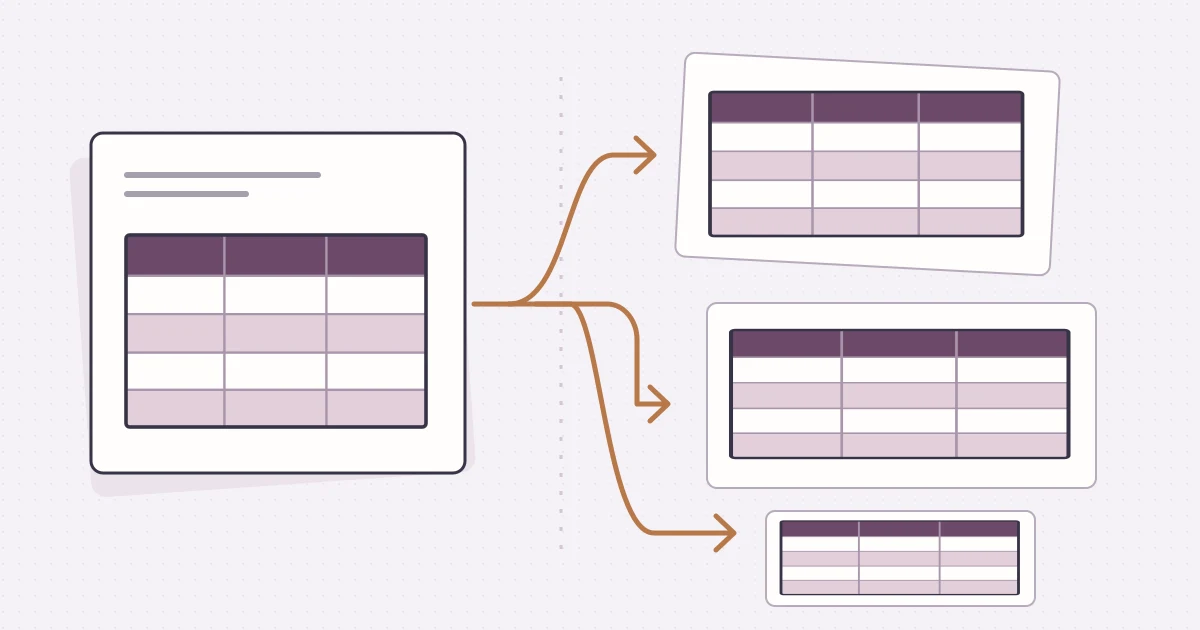
LibreOffice Writer can save a table’s formatting through AutoFormat and apply it to another table. AutoText serves a different purpose: keeping a ready-made block to insert again. Start by deciding whether the next table already exists or needs to be inserted.
Suppose a monthly project report has tables for tasks, owners and deadlines. They should share a visual style, but a table with long task descriptions needs more room than a short list of dates. Reusing the appearance and reproducing the entire table are two different jobs.
In an August 2020 Super User question, a Writer user wanted to save colours and borders for several tables. The discussion concerned versions 6.3 and 6.4; it does not establish a current bug or a tested fix for 26.8.
Choose which formatting to carry over
Writer’s AutoFormat help for 26.8 lists separate choices for number format, borders, font, background and alignment. The English label Pattern refers to backgrounds. Choose the parts you actually want to reuse rather than assuming every setting belongs in the next table.
For our project report, the same heading colours and borders may work throughout, while the date column needs its own number format. A July 2020 reader question about alternating row colours shows another common aim: making rows easier to follow. Preview the result on the next table, especially if it has a different number of rows.
Save an example and try it on another table
Format an example table with the font, backgrounds, borders and alignment you want. Open Table → AutoFormat Styles, choose the formatting to include, then use Add and give the style a name. These are the English menu names; other interface languages may use different labels.
To apply the saved design, put the cursor in another table. You can choose the style in AutoFormat, reviewing its formatting options, or double-click it in Table Styles in the sidebar’s Styles deck. Try a table with different content before adopting the style for the whole report. Look at the heading, an ordinary row and a row with a longer description.
A table style can also affect page layout
The Writer 26.2 Guide documents table-level properties in styles, including repeated headings and whether the table and its rows can break across pages. A design choice can therefore affect where a long row continues, as well as how it looks.
The same guide says that table and column widths are not included in the table style. For a table with predefined full formatting, it recommends AutoText. If the next table has different column proportions, plan those widths separately instead of expecting the style to reproduce the entire layout.
Use AutoText for a ready-made table
The current Writer AutoText guidance allows formatted text, tables and fields to be stored for later insertion. Select the table, open Tools → AutoText, choose a category, name the entry, then choose New from the AutoText button. Later, select that entry and use Insert where the block is needed.
An AutoText entry includes saved content, too. For a recurring report, prepare an example with the headings you intend to keep and placeholders for values that will change, then review the inserted table’s contents and dimensions in its new position. Use a table style when existing tables need common formatting; use a saved block when the next report needs the table itself as a starting point.