softosaur

Prepared from documented information
Google Sheets canvas sharing now involves a choice of links. A canvas opened inside a spreadsheet uses that file’s permissions. A separately published canvas has its own audience and gives recipients a read-only view. Before sending either link, decide whether people need to work on the data or just read the result.
Google announced standalone publishing on November 11. A small team can keep access to its working spreadsheet restricted while sharing a published canvas with a larger audience.
Start with what recipients need to do
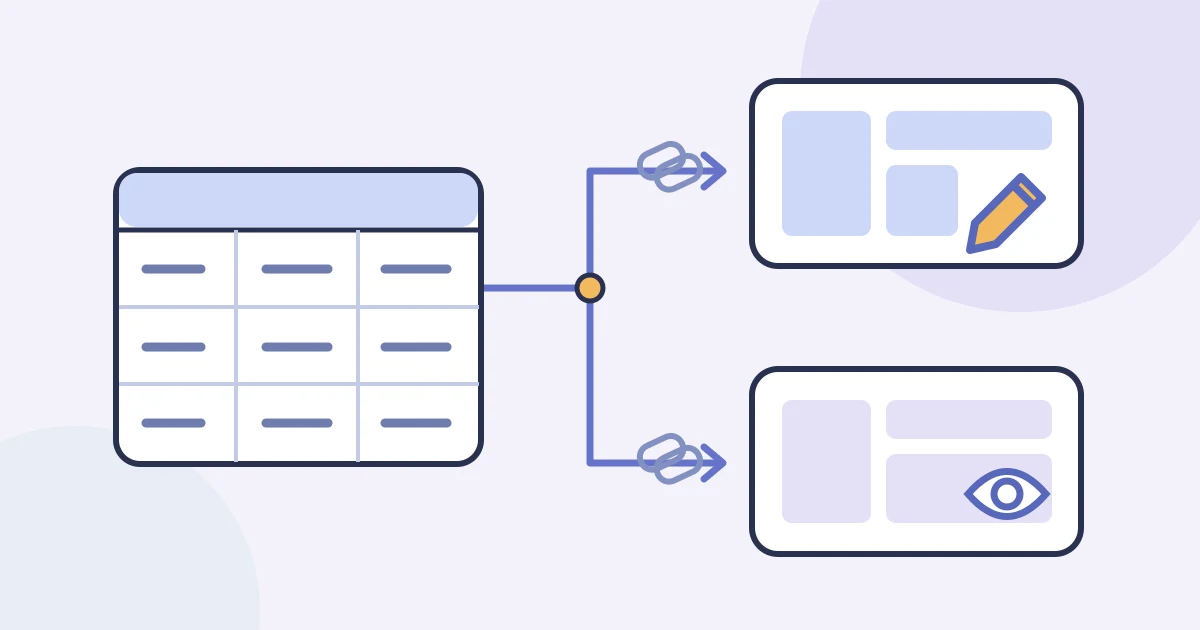
The canvas help page describes ordinary Copy link sharing as using the spreadsheet’s access settings. Someone with edit access can change data through the canvas; viewers and commenters cannot.
The new Publish canvas option creates a separately shared view. Its readers can interact with the published mini-app without getting editing rights to the source spreadsheet.
| What you want to send | Suitable choice |
|---|---|
| A workspace where teammates update the source data | Share the spreadsheet and its in-sheet canvas with appropriate file permissions. |
| A view of an agreed set of data | Publish a static canvas and choose its audience. |
| A read-only view that should follow later source changes | Publish the canvas with automatic republishing enabled. |
Choose the audience in the publishing controls. Google’s help describes administrator-defined target groups for enterprise users and web publication for consumer accounts. Check the actual audience shown before publishing. A canvas link and the working file’s link serve different purposes even when they show the same chart.
Check the data before widening the audience
Google’s publishing guidance says the underlying data is sent to the browser, where viewers may be able to access it. People can receive data through the published view without being able to open its source spreadsheet.
Consider a hypothetical training schedule. Coordinators need working notes, while employees need session dates and rooms. Build the published canvas from a source containing only information suitable for those employees. Keep private trainer notes in a separate working file. A neat display with fewer visible fields is not enough to establish what data the recipient receives.
Choose when the published view should change
For a schedule that keeps changing, automatic republishing lets the published canvas follow source updates. Google’s help warns that updates may take a few minutes. Avoid promising that a changed room number will appear instantly.
A static publication suits an agreed snapshot, such as the timetable attached to a training invitation. Later source edits should not be assumed to change that snapshot. Record its publication date and decide who will publish a replacement when the plan changes.
To withdraw the published view, use the publishing controls to stop publishing. Managing access to the working file is a separate task.
Why the publishing option may be missing
Google scheduled the rollout from November 11 for Rapid Release domains and December 2 for Scheduled Release domains, with up to 15 days for visibility in each rollout. The announcement lists eligible Workspace and Google AI plans. The current help describes canvas as an English-language feature, and publishing is available on the web.
An organization’s existing publishing policy also applies. A missing option is a reason to check the rollout, plan and policy with the administrator, rather than broaden sharing permissions. Alongside the final link, tell recipients whether they are opening a fixed snapshot or a view that can change.