softosaur

Prepared from documented information
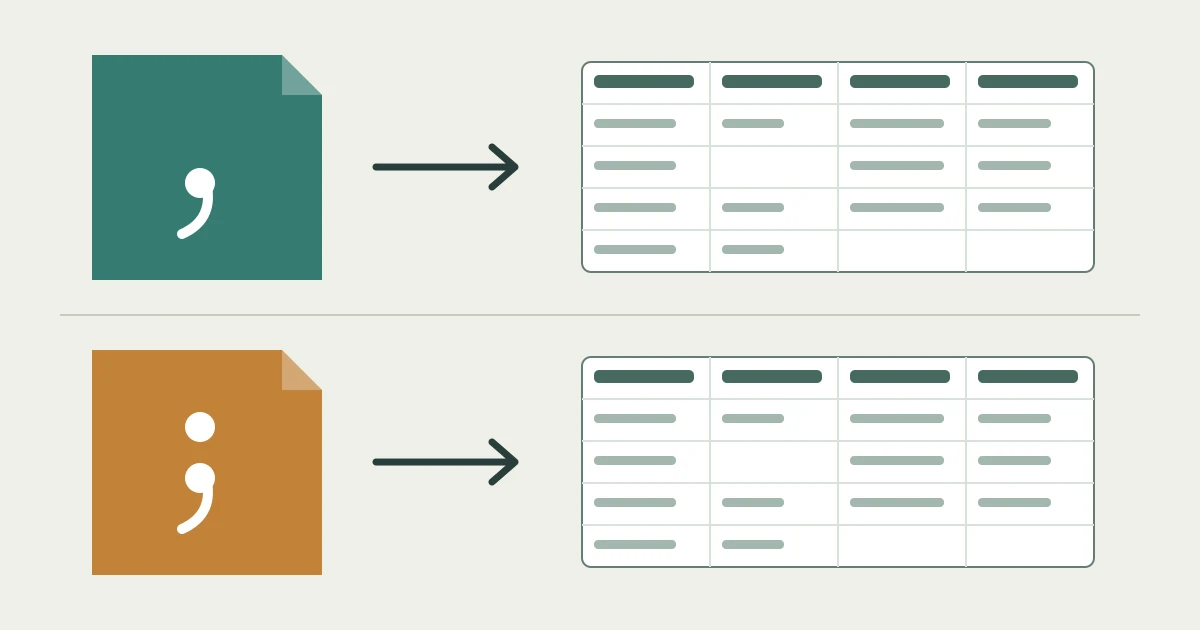
When you open CSV files from different suppliers in LibreOffice Calc, check the import settings for each file. A comma-separated export and a semicolon-separated export can contain the same records, yet need different settings. Calc can reuse the choices from the previous import, as its CSV opening instructions explain.
This walkthrough gives you two small files to practise with before opening a real export. Both should produce the same four columns and four records. The exercise checks whether punctuation stays inside a field, empty cells stay in place and identifiers retain their exact characters. It follows LibreOffice Help 26.8; menu labels can vary with the installed version and language.
Make two files with the same records
Copy each block into a separate plain-text file, using UTF-8 encoding. Name the first comma.csv and the second semicolon.csv. Keep the straight double quotes and empty fields exactly as shown. The records are fictional; the English headings and values are shared by both files so you can compare them directly.
comma.csv:
record_id,site,note,source_date
000417,west;01,"Desk, blue; floor 2",03/04/2026
000418,,Awaiting site,04/03/2026
9007199254740993,north,"Use ""Annex"" entrance",2026-11-16
000419,"east,02",,
semicolon.csv:
record_id;site;note;source_date
000417;"west;01";"Desk, blue; floor 2";03/04/2026
000418;;Awaiting site;04/03/2026
9007199254740993;north;"Use ""Annex"" entrance";2026-11-16
000419;east,02;;
The files put quotes around different fields because a character that separates columns in one file is ordinary content in the other. The doubled quotes around Annex represent quotation marks inside the note.
Open the comma file with explicit settings
Choose File → Open, select comma.csv and use the Text CSV file type. Enable Edit filter settings where offered, then open the file. If you normally open CSVs by double-clicking them, use this route for the exercise so you can inspect the settings.
In Text Import, set the character set to Unicode (UTF-8) and start at row 1. Choose Separated by, enable Comma and clear the other separators. Use a straight double quote (") as the String delimiter. Leave Merge delimiters and Trim spaces off.
The preview should have four columns, with headings record_id, site, note and source_date. Click each preview column heading in turn and set Column type → Text for all four. These particular columns contain identifiers and literal text; there are no quantities to calculate. Leave Always show on import enabled if you want to inspect subsequent CSV imports too. The Text Import reference describes these controls.
Before confirming, check the second record: its empty site must leave a gap between the ID and Awaiting site. Merging consecutive separators would remove that empty field. If the preview is wrong, correct it here rather than proceeding to the sheet.
Compare the imported cells
After importing, widen the columns. The used range should be A1:D5, including the header. Compare these cells with the original text; select a cell and inspect the input line in the formula bar if the value is clipped.
| Cell | Expected content |
|---|---|
| A2 / A3 | 000417 / 000418 |
| A4 | 9007199254740993 |
| B2 / B5 | west;01 / east,02 |
| B3 | Empty |
| C2 | Desk, blue; floor 2 in one cell |
| C3 | Awaiting site |
| C4 | Use "Annex" entrance |
| C5 / D5 | Empty / empty |
| D2 / D3 | 03/04/2026 / 04/03/2026 |
The two slash dates deliberately remain text. This exercise does not decide whether the source uses day/month or month/day. Do not convert them until you know that convention. The long record_id is also an identifier, with no arithmetic meaning here.
Use File → Save As to save a separate working copy as comma-working.ods, selecting ODF Spreadsheet (.ods). Keep the source CSV unchanged, then close the working copy. Calc’s file-saving guide explains choosing the destination and format; the CSV file itself does not retain spreadsheet formatting.
Switch to semicolons, then return to commas
Open semicolon.csv through File → Open and display the filter settings again. Change the separator to Semicolon, clear Comma and every other separator, and check the quote delimiter again. Select Text for each of the four preview columns. Do not assume the previous import left every choice suitable for this file.
Compare the result with the same cell table. In particular, east,02 must remain one cell and B3 must remain empty. Save semicolon-working.ods as an ODF Spreadsheet and close it.
Now reopen the original comma.csv, explicitly select Comma alone and repeat the preview and cell checks. This return to the first file checks the part of the workflow that a successful one-file import leaves unexamined: changing settings back after another supplier’s export. Close this rehearsal without overwriting the original CSV.
Finally, reopen the two .ods working copies and repeat the comparisons. Keep the originals beside them so you can investigate a mismatch without guessing what the export originally contained.
If a check fails
If you cannot reach the import preview, cancel the exercise and check the Help for your installed version. Keep both source files unchanged while resolving the dialog problem.
One wide column usually points to the wrong separator. Extra columns around west;01 or east,02 call for checking whether both separators were enabled. A shifted Awaiting site calls for checking Merge delimiters. Split notes or unexpected quote characters call for checking the double-quote delimiter and the copied source text.
If an ID or date has changed, return to the untouched CSV and assign Text before importing again. Formatting a value afterwards cannot reconstruct characters already lost. For your next real export, inspect its own separator, encoding and field meanings; use these four fictional records as a rehearsal, not as a specification for every supplier.