softosaur

Prepared from documented information
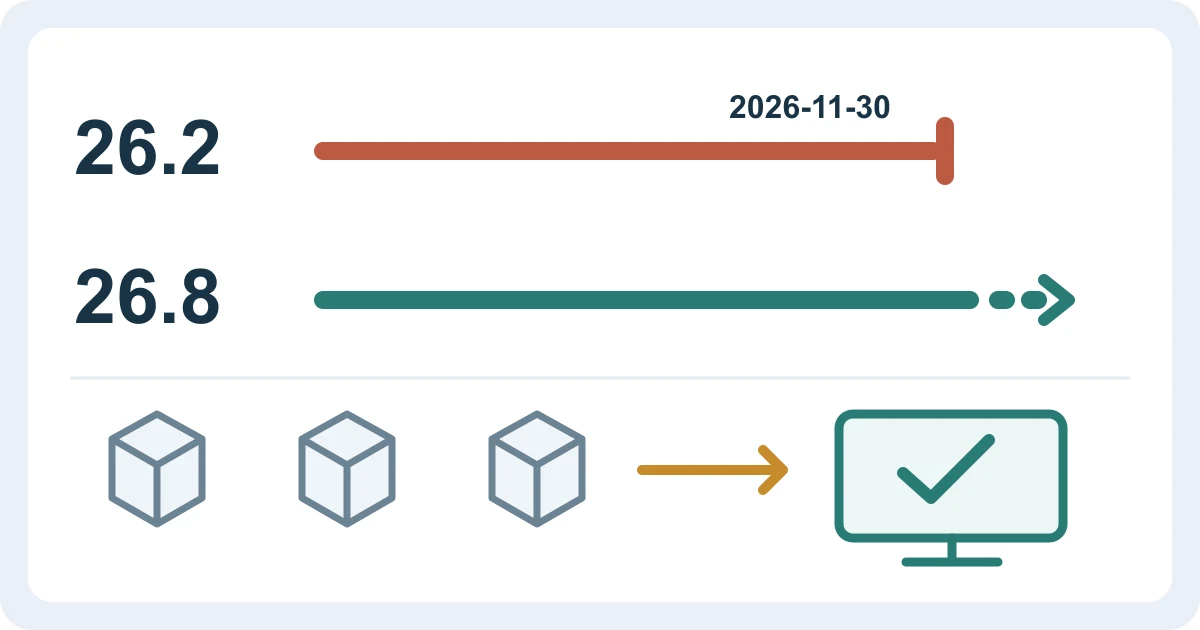
The last LibreOffice 26.2 update does not extend the branch’s maintenance period. If your team uses that community release, the date to plan around is 30 November 2026, when its maintenance ends. By the end of November, the team needs a plan for the maintained version it will use.
The Document Foundation (TDF) released LibreOffice 26.8.3 on November 12 and recommends moving users of 26.2 to the 26.8 family before the deadline. The useful next step is to identify what is installed and how the team receives updates, rather than wait for a particular message to appear.
A new patch does not start a new maintenance period
The November 3 announcement of 26.2.7 calls it the final release of that branch. Installing it can bring the listed fixes to a 26.2 installation; it does not move that installation to 26.8 or change the branch’s end date.
There is a practical reason to distinguish the two. In an older discussion of 26.2.6, a reader reported that an earlier 26.2 build said it was up to date and asked whether to download 26.2.6 or 26.8. That report does not establish why the check behaved that way, or how today’s installer behaves. It shows the question an update message can leave unanswered: which maintained version should this computer be running?
Find out who supplies this installation
LibreOffice’s Help menu documentation describes About LibreOffice as showing the program’s version. Start with that value, then find the installation source. Was the suite downloaded from TDF, supplied through an operating-system package, or deployed by your organisation?
If IT installed the suite, ask when its next approved package is due. If you installed it yourself, compare the version in About with the version offered by your installation source. On a managed computer, check with IT before adding a package from somewhere else.
The online-update help describes notification, download and automatic-update options. It also tells users to check their distribution’s package for the update module. If your installation has no Online Update controls, check how its distributor or IT team delivers updates.
Write down the installed version, its update source and the person responsible for the next package. That makes a follow-up question specific: when will this installation move to a maintained release, and how will we verify the new version afterwards?
Try the files your colleagues actually exchange
Consider a hypothetical office that sends a DOCX proposal, edits an XLSX price sheet and exports a PDF for customers. A useful trial of the intended replacement uses copies of those familiar files and follows the same handoffs. Check what colleagues and recipients actually need: the proposal’s layout, the sheet’s expected results and the final PDF.
Keep the result specific to the files and tasks you checked. Other documents may behave differently. Record any blocking difference and who can resolve it before moving the remaining computers.
A support agreement needs its own answer
For a commercial or distribution-maintained build, ask its provider which version it maintains and until when. TDF’s business guidance explains that LibreOffice Enterprise is a family of partner products, rather than one product with a single support policy. If you use one of those products, confirm its maintenance dates with its provider.
Before planning the next rollout, get a specific answer from that provider: which release will it maintain, and until when?